Video translator apps turn your video content into multiple languages automatically — transcribing the original audio, translating it, and generating subtitles or dubbed audio in other languages. If you create videos for a global audience, this saves you from manually translating and subtitling each video.
This guide shows how to use video translator apps, what to look for in a tool, and how to get the best results for multilingual video content.
Before You Start
Three quick checks before translating your first video:
- Check your video format. Most apps accept MP4, MOV, or AVI. If your video is in a different format, convert it first.
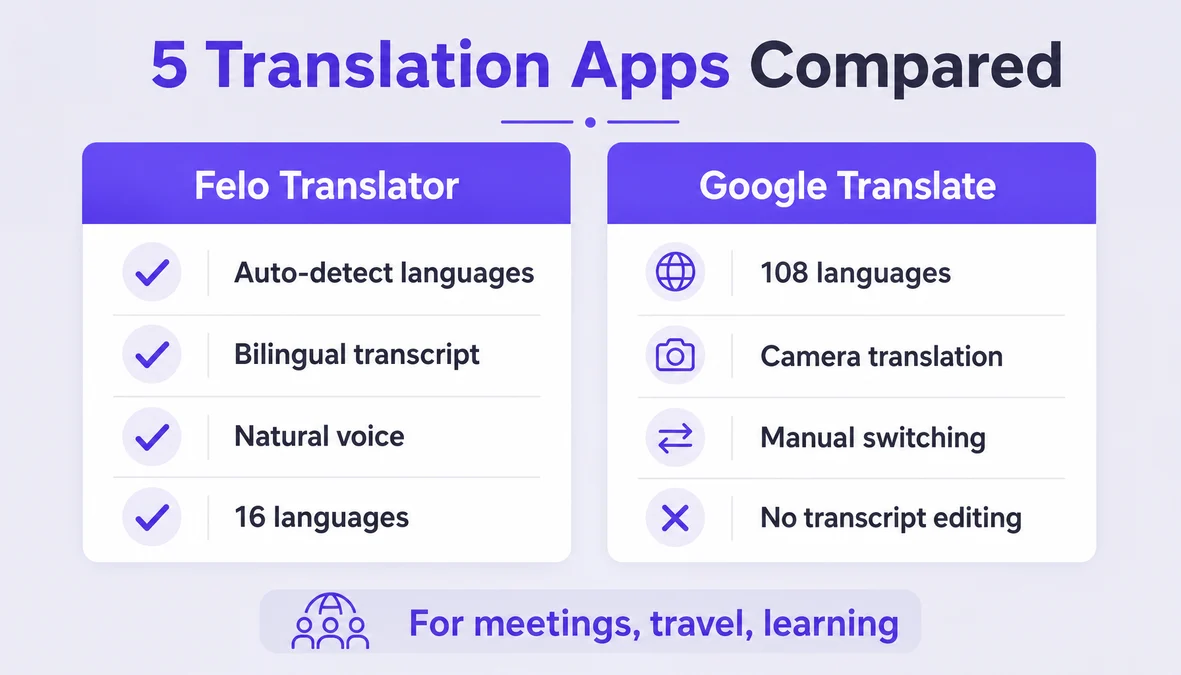
- Confirm target languages. Not all apps support the same languages. Felo Translator supports 16 languages for voice translation: Korean, Japanese, German, English, Simplified Chinese, Taiwanese Mandarin, Cantonese, Czech, Thai, Spanish, French, Italian, Russian, Indonesian, Vietnamese, and Nepali.
- Decide on subtitle style. Do you want burned-in subtitles (permanent), soft subtitles (toggleable), or dubbed audio? Different apps offer different options.
How Video Translation Works
Video translator apps typically follow three steps:
- Transcription: The app extracts audio from your video and transcribes it into text using speech recognition.
- Translation: The transcribed text is translated into your target language(s) using machine translation.
- Output generation: The app creates subtitles (SRT, VTT, or burned-in) or generates dubbed audio in the target language.
Some advanced tools also offer:
- Voice cloning: The translated audio uses a voice similar to the original speaker.
- Lip sync: The video is adjusted so the speaker's mouth movements match the translated audio.
- Multi-language export: Generate multiple language versions in one batch.
How to Translate a Video Step by Step
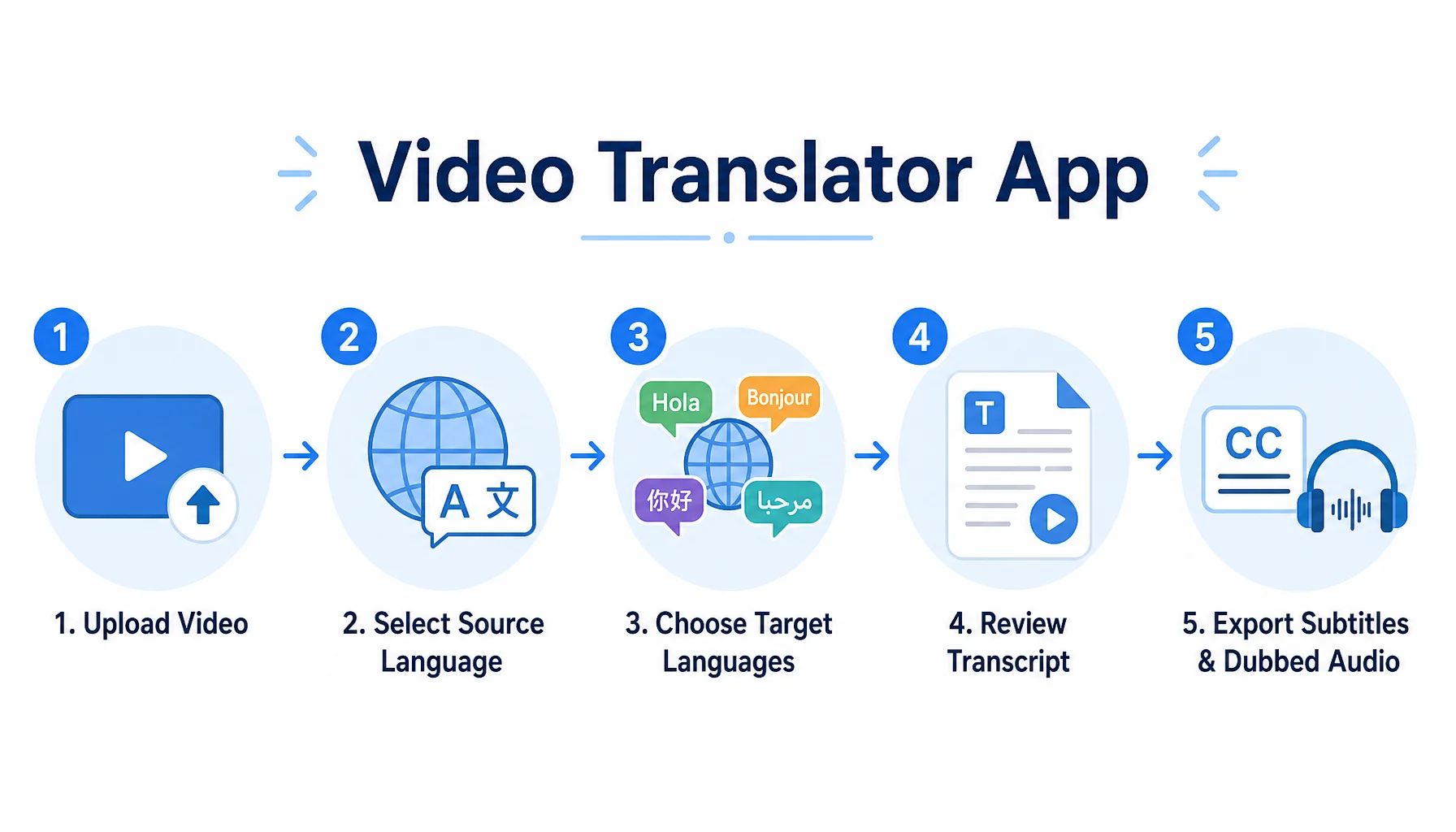
- Upload your video to the translator app. Most apps let you drag and drop or select a file from your device. Files over 500MB may take longer to process.
- Select the source language. If the app doesn't auto-detect, choose the language spoken in the video. For bilingual videos, pick the dominant language.
- Choose your target language(s). Select one or more languages you want to translate into. Some apps let you queue multiple languages for batch processing.
- Wait for transcription and translation. This can take 5-30 minutes depending on video length and server load. Longer videos (over 10 minutes) may take longer.
- Review the transcript for accuracy. Machine translation isn't perfect. Check key terms, names, and technical vocabulary. Most apps let you edit the transcript before generating subtitles.
- Choose your output format. Options typically include:
- SRT or VTT subtitle files (for uploading to YouTube, Vimeo, etc.)
- Burned-in subtitles (permanent text on the video)
- Dubbed audio track (replaces original audio)
- Download or export the translated video. If you generated subtitle files, you can upload them to your video platform. If you burned in subtitles or created dubbed audio, download the new video file.
- Test playback. Watch a few minutes of the translated video to check timing, accuracy, and audio sync before publishing.
Video Translation for Different Use Cases
YouTube creators. You upload a video in English, and the translator app generates subtitles in Spanish, Portuguese, Japanese, and Korean. You upload the SRT files to YouTube, and viewers can toggle subtitles in their language. This expands your reach without re-recording.
Corporate training. A company creates a training video in English for employees worldwide. The video translator app generates dubbed audio in French, German, and Mandarin. Employees watch the same video with audio in their language.
Educational content. A professor records a lecture in Chinese. The video translator app adds English subtitles for international students. The professor doesn't need to re-record or hire a translator.
Marketing videos. A product demo video in Japanese needs to reach European markets. The video translator app generates subtitles in English, French, German, and Spanish. The marketing team uploads the subtitled versions to regional landing pages.
Tips for Better Video Translation
- Use clear audio. Background music, sound effects, and overlapping voices reduce transcription accuracy. If possible, use a video with clean dialogue.
- Speak at a moderate pace. Fast speech is harder to transcribe accurately. If you're recording a new video, avoid speaking too quickly.
- Edit the transcript before generating subtitles. Machine translation makes mistakes with names, technical terms, and industry jargon. Fix these in the transcript before exporting.
- Choose the right subtitle timing. Subtitles should appear and disappear in sync with the audio. Most apps handle this automatically, but check for timing issues in long videos.
- Test on different devices. Subtitles may look different on mobile vs. desktop. Check font size, positioning, and readability on both.
Honest Limitations
- Translation quality varies. Machine translation is good for common phrases but struggles with idioms, slang, and cultural references. For critical content, consider human review.
- Voice cloning isn't perfect. If the app offers dubbed audio with voice cloning, the result may sound slightly robotic or not match the original speaker's tone.
- Long videos take time. A 10-minute video may take 10-30 minutes to process. An hour-long video could take an hour or more.
- Not all languages perform equally. English, Spanish, French, and German tend to have the highest accuracy. Less common languages may have more errors.
- Burned-in subtitles can't be changed. Once you burn subtitles into the video, they're permanent. If you need to edit them later, you'll need to re-export the video.
How Felo Translator Fits into Video Workflows
Felo Translator is primarily a real-time voice translation app, not a dedicated video translator. However, it can be part of a video workflow in specific ways:
For live video content (streams, webinars, live demos), Felo's real-time caption translation can provide live subtitles in 16 languages. Viewers see translated captions as the content is produced.
For pre-recorded videos, you can use Felo to transcribe and translate the audio, then manually sync the transcript to the video using a subtitle editor. Felo's bilingual transcript feature shows both the original and translated text, making it easier to verify accuracy.
If you're creating multilingual video content and need real-time translation for live sessions, or you want a transcript you can edit and use for subtitle creation, you can try Felo Translator at felo.me/translator.
FAQ
Can video translator apps translate any video? Yes, most video translator apps work with any video file as long as the audio is clear. However, videos with heavy background music, sound effects, or overlapping voices may have lower transcription accuracy.
How long does video translation take? It depends on video length and the app's processing speed. A 5-minute video typically takes 5-15 minutes. A 30-minute video may take 30-60 minutes. Longer videos take proportionally longer.
Do video translator apps support voice dubbing? Some do. Advanced tools offer AI-generated dubbed audio, sometimes with voice cloning to match the original speaker's voice. Felo Translator focuses on real-time voice translation and transcripts, not video dubbing.
Can I use video translation for YouTube? Yes. Most video translator apps let you export SRT or VTT subtitle files, which you can upload to YouTube. Viewers can then toggle subtitles in their preferred language.
By the Felo Editorial Team. The Felo Editorial Team writes about language, voice translation, and the details of talking across borders.
Felo Translator is a real-time voice translation app in 16 languages, at felo.me/translator.