AirPods can now translate a conversation as it happens: the other person speaks, and you hear their language in yours through your earbuds a beat later. If you have compatible AirPods and a recent iPhone, the feature is already in your pocket — it just needs about ten minutes of setup before your trip, not at the check-in counter.
This guide walks through the setup, the way a real conversation sounds in practice, and the honest limits — including the moments where a dedicated translation app on your phone is the better tool.
Before you go: three things to check
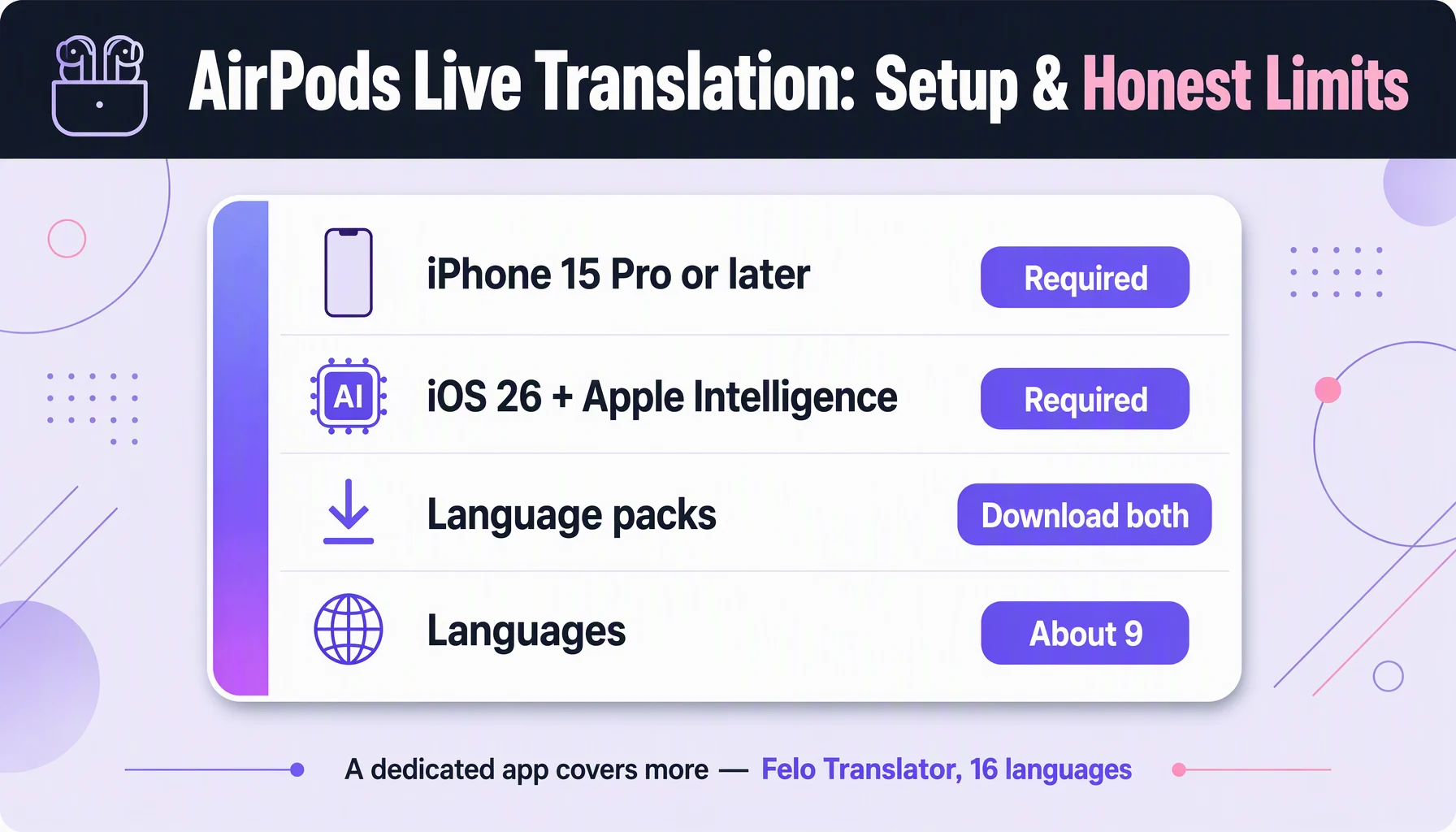
Your hardware has to be on the list. Per Apple's support documentation, Live Translation works with AirPods 4 with Active Noise Cancellation, AirPods Pro 2, or AirPods Pro 3 — with the latest firmware installed. On the phone side you need an iPhone 15 Pro or later running iOS 26 or later, with Apple Intelligence turned on and the Translate app installed. An iPhone 14 or an AirPods Pro 1 will not run it, no matter what settings you tap.
Download the language packs before you travel. Live Translation needs a pack for both languages in the conversation. Go to Settings, tap your AirPods, then Live Translation, and download the pair you need — on Wi-Fi, because the packs are large. Once downloaded, the translation runs on the phone itself, so the conversation works without a data connection.
Check your languages are covered. The launch list was English, French, German, Spanish, and Portuguese (Brazil). Tech press covering the iOS 26.1 update reported additions including Japanese, Korean, Italian, and Chinese (Simplified). That is still a short list, and it shapes when the feature is the right tool — more on that below.
How to use it: seven steps
1. Turn the feature on and pick your pair. In Settings, tap your AirPods, tap Live Translation, and set the language you speak and the language the other person speaks. This is also where the packs download from.
2. Start a session. Open the Translate app, tap Live, and start the translation. Once your AirPods are in your ears, this is all it takes — there is nothing to pair or reconfigure at the table.
3. Let the other person speak first. They talk normally. Their words come into your AirPods translated, a beat or two behind them. You do not hand anyone your phone.
At a ramen counter in Tokyo: Staff: "Irasshaimase! Osusume wa?" In your ear: "Welcome! Our recommendation is..." Staff continues: "Kono tsukemen wa katame desu." In your ear: "This tsukemen dipping noodle is firm."
4. Reply out loud and let the phone carry it. When you answer, the phone speaks your words in the other language — through its speaker, or as text on the screen the other person can read. Speak toward the phone's microphone, not into your AirPods.
5. Keep the screen visible for numbers. Prices, platform numbers, addresses, gate changes: let the transcript show them. A spoken "twenty-six hundred yen" and "sixteen hundred yen" are one syllable apart; on screen they are not.
6. Use it on calls, not just in person. Live Translation also works during phone and FaceTime calls while you wear the AirPods — useful for calling a hotel or a restaurant ahead of arriving.
7. End the session when the conversation ends. Tap the X in the Translate app. Sessions left running keep listening and drain the battery faster than music does.
Where it shines: three real moments
Reading a menu with the chef standing right there. Short exchanges at counters and market stalls — what is this, how much, which one is less spicy — are the feature's best case. The translation is quick enough that the exchange still feels like a conversation, not an interview.
Checking into a guesthouse in São Paulo. The receptionist explains the breakfast hours and the door code at speaking pace. You hear both in English, in your ears, while your hands are still holding your luggage.
A supplier call before the trade show. On a FaceTime call, each side hears their own language. Nobody has to install anything — which matters when the other person is a warehouse, not a colleague.
Make it smoother: five tips
- Speak in short sentences. One instruction per breath. Long compound sentences push the important clause further from the translation, and the other person has to hold more in their head.
- Rephrase instead of repeating louder. If the other person looks confused, say the same idea in simpler words. Raising your volume does not help the model; rewording does.
- Set the Action button to Translate. On iPhones that have one, assigning the Action button to the Translate app lets you start a Live session with a press, no unlocking required.
- Say numbers digit by digit when they matter. "Two-six-zero-zero" lands better than "twenty-six hundred," and the transcript backs you up.
- Charge for the session, not the day. Live Translation is more battery-hungry than a playlist. If you are navigating a foreign city all day, it competes with maps for power.
The honest limits
The language list is short. Nine-ish languages, counting English's regional variants, is a fraction of what a dedicated translation app covers. If your conversation needs Thai, Vietnamese, Cantonese, Indonesian, Czech, Russian, or Arabic, Live Translation is not the tool for the conversation.
The hardware bar is high. iPhone 15 Pro or later rules out every older and budget iPhone in one stroke. If your travel phone is last year's mid-range Android, the feature is simply not available to you — the whole workflow lives inside the Apple ecosystem.
The other person hears your half through your phone speaker. In a quiet guesthouse lobby this is fine. Next to a ramen fryer, on a windy platform, or across a taxi's front seats, your phone speaker will struggle, and the other person will lean in and miss half of it.
It is a beta, and Apple says so. The company's own documentation notes that a generative feature like this can produce inaccurate or unexpected output, and recommends verifying anything important. For directions, prices, and small talk that is a fine trade. For a medical explanation or a contract term, treat the output as a draft, not a decision.
Regional availability has been uneven. At launch, the feature was not available in the European Union, and availability has since depended on region and account settings. If you are flying into the EU, check that it works before you need it in a pinch.
Where a dedicated translation app fits in
Live Translation is built into hardware you already own, and for its supported languages on a compatible iPhone it is the lowest-friction option — nothing to install, nothing to hand over. The limits above, though, are exactly where a dedicated voice translation app earns its keep.
Felo Translator is built for precisely the moments Live Translation steps out of: it works on both iOS and Android, so there is no iPhone 15 Pro requirement and no single-ecosystem lock; it supports 16 languages — including Thai, Vietnamese, Cantonese, Indonesian, Czech, and Russian that AirPods' list does not reach; and it is powered by a GPT-driven engine with Translation Reading, which plays the translation aloud in a natural voice so the other person hears it from your phone even when they have no app installed. Conversations are kept on your device with Local Save, so the address or price you negotiated is still there tomorrow, and the app has been certified under ISO/IEC 27001 for information security.
The two also complement each other on the same trip: AirPods for the phone calls and the quiet counter exchanges, a dedicated app for the languages, devices, and loud rooms Live Translation does not cover. You can try Felo Translator free from the app stores — it is the same phone you are already carrying.
FAQ
Does Live Translation work with AirPods Pro 2, or only the new Pro 3? It works with AirPods Pro 2 and AirPods 4 with Active Noise Cancellation, as long as the latest firmware is installed. The iPhone-side requirement is the stricter one: iPhone 15 Pro or later with iOS 26 and Apple Intelligence.
Does it work offline? Yes, after setup. Both language packs must be downloaded first; from then on the translation runs on the device itself. The download is the part that needs a connection, which is why you should do it at home, not at the airport.
How many languages does it support? At launch: English, French, German, Spanish, and Portuguese (Brazil). With the iOS 26.1 update, tech press reported additions including Japanese, Korean, Italian, and Chinese (Simplified). Counting English's regional variants, that is roughly nine languages — still a short list compared with dedicated apps.
What if I have an Android phone or an older iPhone? Then Live Translation is not an option, but the workflow does not disappear. A dedicated app such as Felo Translator runs on both iOS and Android, covers 16 languages, and offers a free trial — the setup takes minutes and does not depend on which phone you carry.
By the Felo Editorial Team. The Felo Editorial Team writes about language, voice translation, and the details of talking across borders.