Live caption translation gives you real-time subtitles in a different language — you speak (or listen), and the app transcribes and translates at the same time. It's useful when you're in a multilingual meeting, following a lecture in a language you don't fully understand, or hosting a live stream for an international audience.
This guide walks through how to use live caption translation in everyday situations — what to prepare, how to set it up step by step, and how to get the best results.
Before You Start
Three quick checks before your first session:
- Update your translation app to the latest version — caption features improve frequently.
- Confirm your language pair is supported. For example, Felo Translator supports 16 languages: Korean, Japanese, German, English, Simplified Chinese, Taiwanese Mandarin, Cantonese, Czech, Thai, Spanish, French, Italian, Russian, Indonesian, Vietnamese, and Nepali.
- Make sure you have a stable internet connection. Live caption translation requires network access — local saving is for storage, not offline translation.
How to Use Live Caption Translation
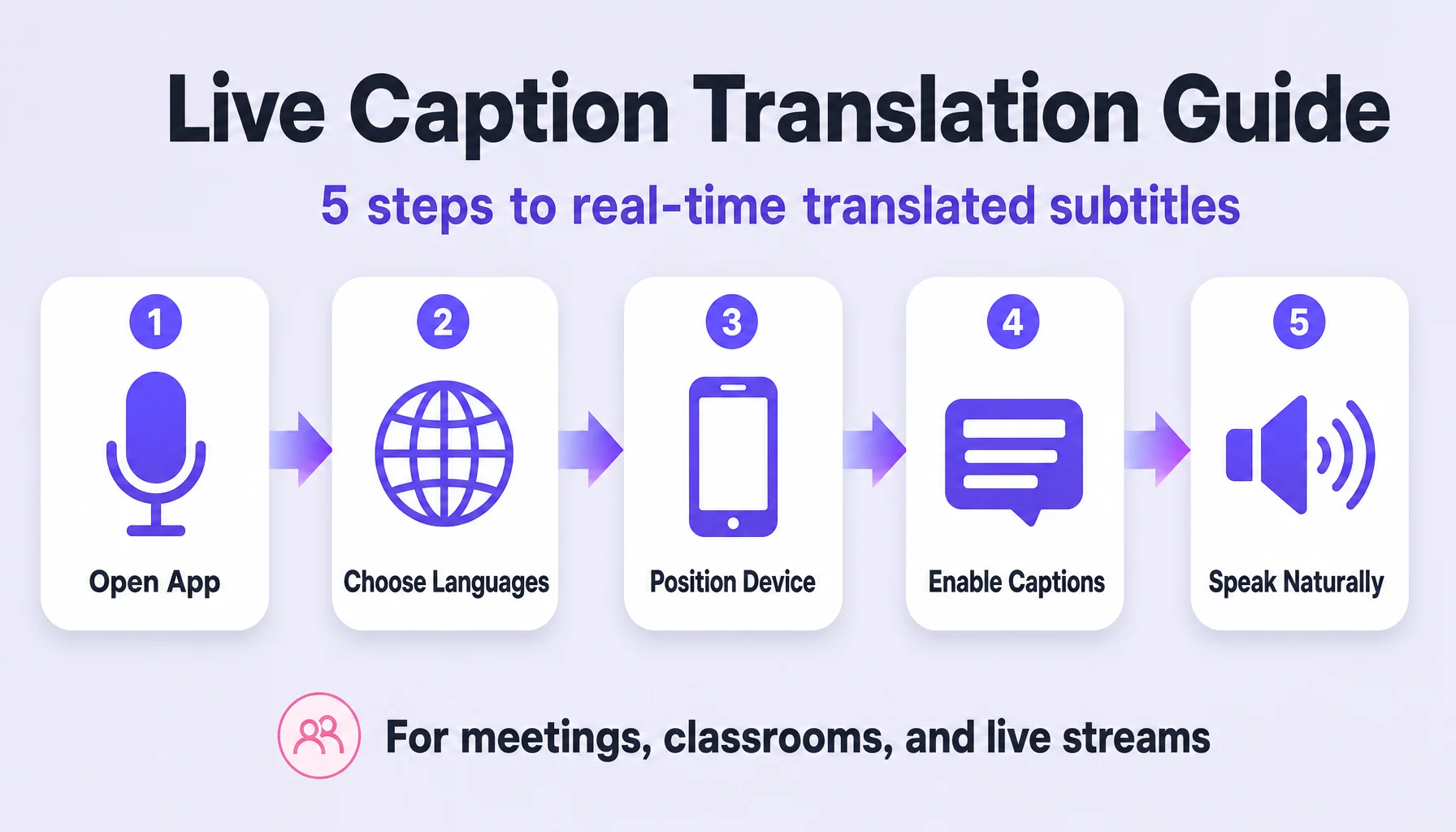
- Open your translation app and select Voice Translation mode. On Felo Translator, this is the main screen — tap the microphone icon to start.
- Choose the source and target languages. If you're in a bilingual meeting, set one language for each side. For example, English on the left, Japanese on the right — the app will auto-detect who's speaking.
- Position your device between speakers, or use split-screen mode. In a face-to-face conversation, place the phone on the table between you and the other person. For a meeting or lecture, position it closer to the main speaker.
- Enable the live caption display. Most apps show both the original transcript and the translation on screen. On Felo, you'll see bilingual subtitles scrolling in real-time.
- Speak naturally at a moderate pace. The app transcribes as you talk. Short, clear sentences work best — avoid long monologues without pauses.
- Read the captions or listen to the audio translation. Some apps, including Felo, can read the translation aloud in a natural voice. If you're in a quiet setting, headphones prevent echo.
- Review and save the transcript when you're done. After the session, you can edit the transcript for accuracy, highlight key points, and share it with others. Felo stores transcripts locally on your device.
Where Live Caption Translation Works Best
Business meetings. A product team in Tokyo meets with partners in San Francisco. Each side speaks their own language; live captions show translated subtitles on both screens. No interpreter needed for routine discussions.
Classrooms. An international student attends a lecture in Korean. The professor speaks Korean; the student's phone shows real-time English captions. Key terms appear in both languages for review later.
Live streams. A creator broadcasts a cooking tutorial in Spanish. Viewers in Brazil see Portuguese captions appear on screen — the streamer doesn't need to speak Portuguese or add subtitles afterward.
Tips for Better Results
- Speak clearly and pause between sentences. The transcription engine works better with natural breaks — think in phrases, not run-on paragraphs.
- Keep the microphone close to the speaker. In a group setting, pass the phone around or use a conference microphone if your app supports external mics.
- Reduce background noise. Close windows, mute notifications, and avoid crowded cafes. The cleaner the audio, the more accurate the captions.
- Check key terms manually. Names, technical jargon, and industry-specific vocabulary may not translate perfectly — review the transcript for important details.
- Use audio output when visual reading isn't practical. If you're driving or cooking, listen to the translated audio instead of reading the screen.
Honest Limitations
- Internet required. Live caption translation needs a network connection. If you lose signal, the transcription stops — local saving stores the transcript, but doesn't translate offline.
- Background noise reduces accuracy. Crowded rooms, music, or overlapping voices can confuse the speech recognition. Quiet environments work best.
- Names and proper nouns often don't translate. Personal names, brand names, and place names may appear in the original language or get mangled. This is a known limitation across all translation tools.
- Long monologues are harder to transcribe. If someone speaks for two minutes without pausing, the transcript may skip or merge sentences. Encourage speakers to pause naturally.
- Not all languages perform equally well. English, Japanese, Chinese, and Korean tend to have the highest accuracy. Less common language pairs may see more errors.
How Felo Translator Handles Live Captions
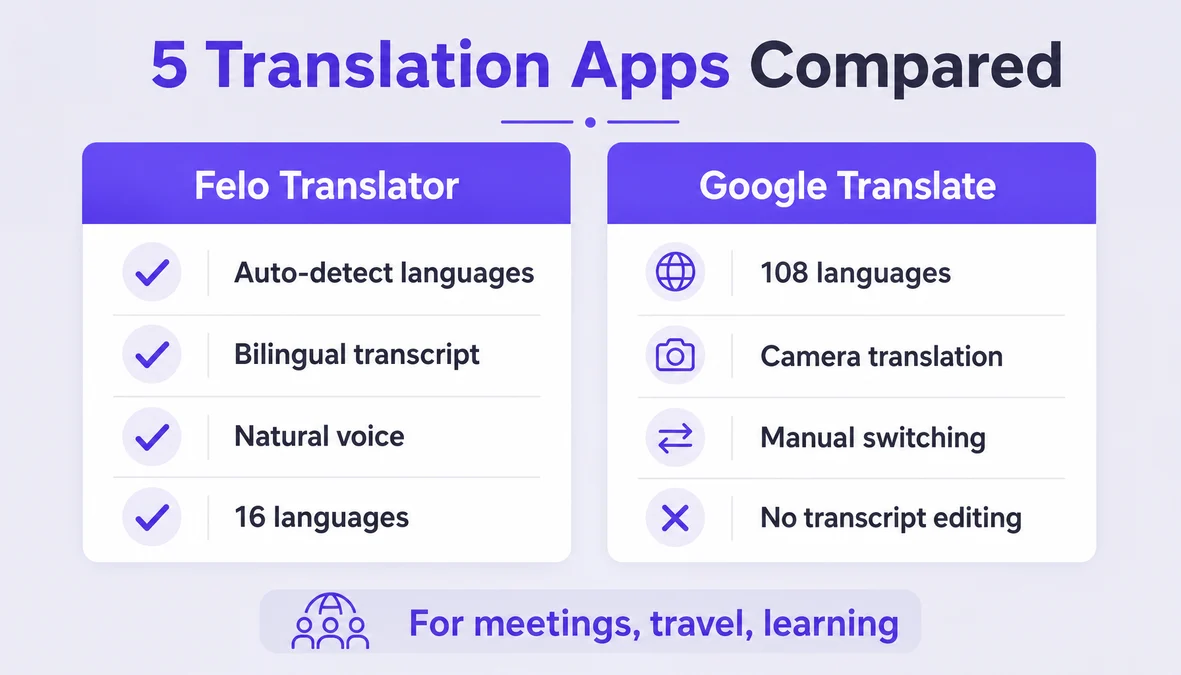
Felo Translator offers live caption translation across 16 languages with bilingual transcripts you can edit and share. The app uses GPT-based speech recognition and translation, which tends to handle context better than older phrase-matching systems.
For live caption use cases, Felo's Voice Translation mode auto-detects both speakers' languages in a two-way conversation — you don't need to manually switch between "I'm speaking English" and "Now they're speaking Japanese." The bilingual transcript shows both the original and translated text side by side, which is useful for reviewing meetings or studying language nuances.
Felo also reads translations aloud in a natural voice, so you can listen instead of reading — helpful when your hands are full or you're multitasking. All transcripts save locally on your device, so you can review them later without needing to stay connected.
If you're exploring live caption translation for meetings, classrooms, or travel, you can try Felo Translator at felo.me/translator.
FAQ
Can I use live caption translation offline? No — live caption translation requires an internet connection to transcribe and translate in real-time. Some apps, including Felo, let you save transcripts locally for later review, but the translation itself happens online.
How accurate is real-time caption translation? Accuracy depends on audio quality, speaker clarity, and the language pair. For common pairs like English–Japanese or English–Chinese, accuracy is generally high (85–95%) in quiet environments. Technical terms, names, and heavy accents reduce accuracy.
Which languages work best for live captions? English, Japanese, Chinese (Simplified and Traditional), and Korean tend to have the highest transcription and translation accuracy. Felo supports 16 languages total, including Spanish, French, German, Italian, Russian, and several Southeast Asian languages.
Can I save the translated captions for later? Yes — most translation apps let you save the transcript. On Felo, transcripts store locally on your device. You can edit them, highlight key points, and share them with others after the session.
By the Felo Editorial Team. The Felo Editorial Team writes about language, voice translation, and the details of talking across borders.
Felo Translator is a real-time voice translation app in 16 languages, at felo.me/translator.